Switch AudioCodes SIP Phones to Microsoft Teams SIP Gateway
This procedure describes how to convert AudioCodes SIP Phones to Microsoft Teams SIP Gateway. For information on how to configure the Microsoft SIP Gateway, see .
|
1.
|
Open the Devices Status page (Monitor > Devices Status). |
|
2.
|
In the Devices Status page, do one of the following: |
|
●
|
Select the check box adjacent to the relevant phone and then click the Actions drop-down menu. |
|
●
|
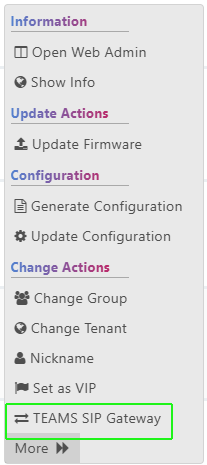
Select the relevant phones and then click the Selected Row Actions drop-down. |
|
3.
|
Select the TEAMS SIP Gateway option. |
|
4.
|
In the popup, select Add to TEAMS SIP Gateway and then click Set. |
|
5.
|
Do one of the following: |
|
●
|
For single devices: the following screen is displayed. Click Export to export the details of SIP Gateway to a CSV file. |

The following shows an example CSV file.
Copy
Model        Username / Mac    Tenant    Status
445HD        00908f98bee4    IPPQA_Tenant    Finished
|
●
|
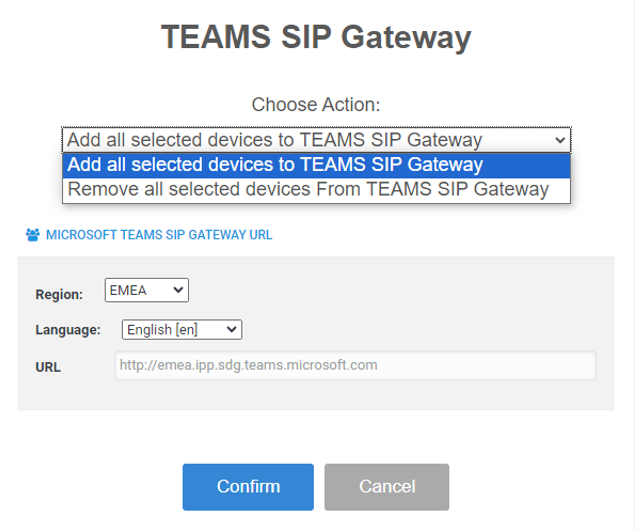
For multiple devices: From the drop-down, select the option Add all selected devices to TEAMS SIP Gateway. |
|
6.
|
The phone (s) reboot and switches to Teams SIP Gateway. The process includes rebooting from Android to Linux and updating the configuration from Teams SIP Gateway. |
|
7.
|
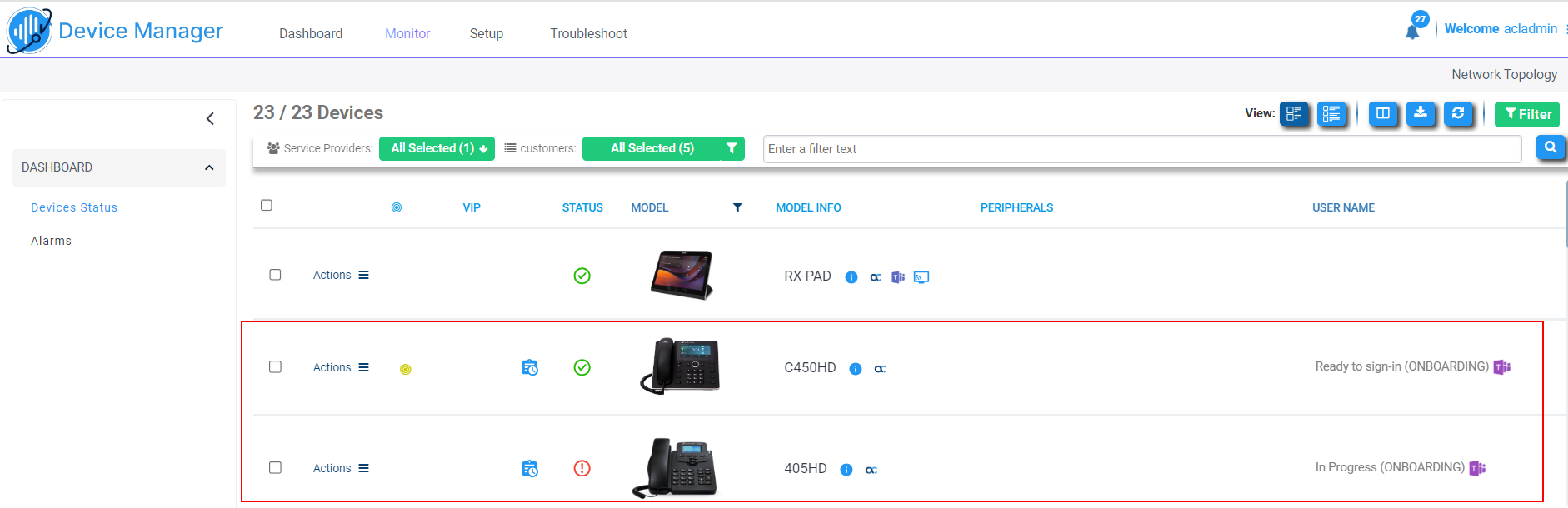
At the end of the process, make sure the relevant phones are displayed as Teams SIP Gateway (see ONBOARDING indication): |
